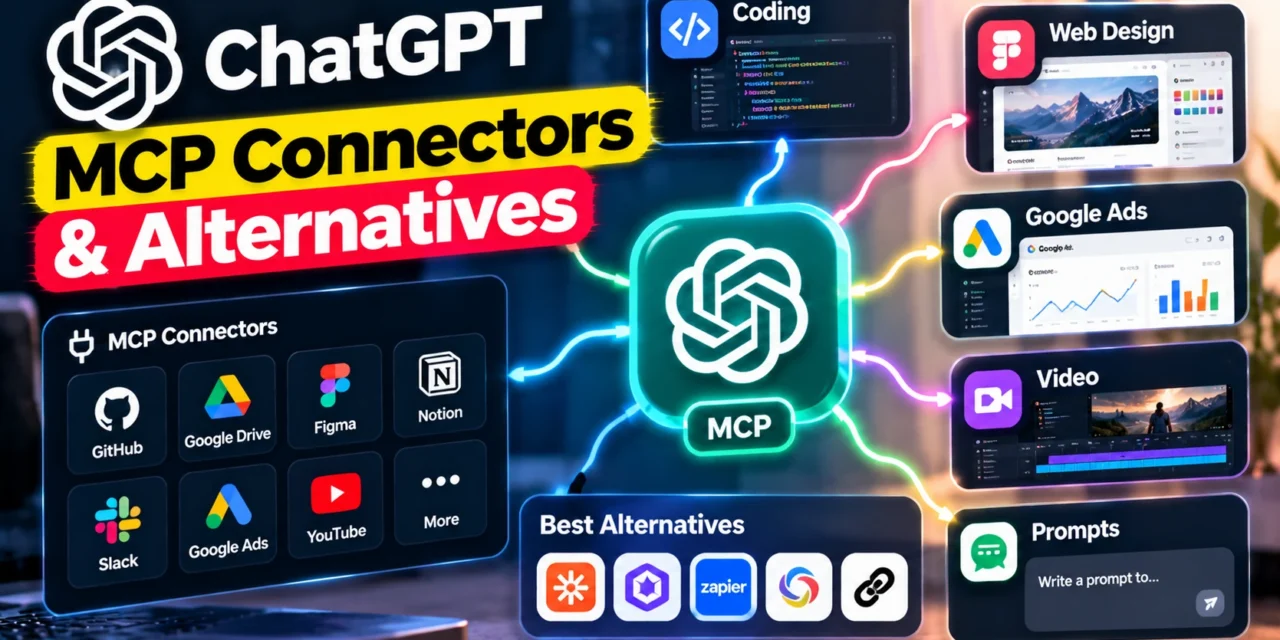
AI assistants become far more useful when they can reach your real tools. MCP connectors make that possible. They let an AI app search, read, or take action in services such as your code repository, design files, ad accounts, or document library.
This guide explains what an MCP connector is, how to set one up in ChatGPT, which alternatives exist, and how to use connectors for specific jobs: coding, website design, Google Ads, video, and prompt work. It is based on recent guides and documentation. Menu names, plan limits, and tool lists change often, so check each product’s help pages before you start.
What is an MCP connector?
MCP stands for Model Context Protocol, an open standard for connecting AI apps to outside tools. A connector is the saved link, with your sign-in, between an AI app and one service.
|
Term |
Simple meaning |
|---|---|
|
MCP server |
The service that offers its tools to AI apps |
|
MCP client |
The AI app that talks to the server, such as ChatGPT, Claude, or Cursor |
|
Connector |
The saved link to one server inside your AI app |
Because MCP is an open standard, a service can build one server and many AI apps can use it.
How ChatGPT handles MCP
ChatGPT supports MCP through connectors, which OpenAI renamed “apps” in late 2025, and through a developer mode for custom servers. Key facts from recent guides:
- Ready-made apps. ChatGPT offers a directory of connectors from vendors that you can connect and sign in to.
- Custom servers need developer mode. Developer mode is not available on the Free plan. Plus, Pro, Business, Enterprise, and Education plans can use it, and on workspace plans an admin may need to enable custom connectors first.
- Remote servers only. ChatGPT works with remote MCP servers over HTTPS. Local servers on your own computer are not currently supported.
- Write access varies. Full read and write actions are described as rolling out in beta for some business plans, and may be more limited on personal plans.
How to add a custom MCP server in ChatGPT
- Open Settings and go to Apps and Connectors.
- Open Advanced settings and turn on Developer mode.
- Click Create. This button appears only after developer mode is on.
- Enter the server’s HTTPS URL and a name.
- Choose the sign-in method, usually OAuth.
- Approve access when the service asks.
- Use it in a chat by selecting the connector, then ask for what you need.
If you can’t find the option, check your plan and whether developer mode is on. Menu names may differ slightly.
Alternatives to ChatGPT for MCP
|
Tool |
Best for |
MCP notes |
|---|---|---|
|
Claude and Claude Desktop |
General work with strong connector support |
Has a connectors directory and custom remote connectors across several plans; Claude Desktop can also use local servers |
|
Claude Code |
Developers |
Described as supporting tools, resources, and prompts over local and remote servers |
|
Cursor |
Coding inside an editor |
MCP client for developer workflows |
|
Codex |
Coding agents |
Added MCP support with OAuth |
|
VS Code with GitHub Copilot |
Developers who live in VS Code |
Works as an MCP client |
|
Windsurf and Cline |
Coding agents and editors |
MCP clients |
|
Mistral Le Chat |
General assistant with connectors |
Offers connectors and custom MCP connectors |
Because MCP is an open standard, the same server can usually work across these clients. Free plans of several tools may not allow custom MCP servers, so check before you commit.
Which should you choose?
- You want general research and writing with your tools: ChatGPT or Claude.
- You need local files or local tools: Claude Desktop, Claude Code, or an editor like Cursor, since ChatGPT does not support local servers.
- You mainly write code: Claude Code, Cursor, Codex, or VS Code with Copilot.
- You work in a team with admin controls: Check the business plans of ChatGPT, Claude, and others.
Using connectors by job
The right connectors depend on what you do. Below are practical setups and example prompts. Availability of specific connectors varies, so look in your app’s directory.
1. Coding
Useful connectors: GitHub, a code repository connector, error-tracking tools such as Sentry, databases, documentation search, and ticket trackers like Jira or Linear.
Best clients: Claude Code, Cursor, Codex, VS Code with Copilot.
Example prompts:
- “Read the open issues labeled bug, group them by cause, and suggest which to fix first.”
- “Review this pull request for bugs and missing tests.”
- “Check recent errors in our monitoring tool and propose a fix for the most common one.”
Tip: Let the AI plan and review, then approve changes before it writes to your repository.
2. Website design
Useful connectors: Design tools such as Figma or Canva, website builders such as Webflow, and your content or asset library.
Best clients: ChatGPT or Claude for design and content work, and Cursor or Claude Code when building the site in code.
Example prompts:
- “Look at our homepage design and suggest layout changes to improve clarity.”
- “Turn this design into responsive HTML and CSS.”
- “Create three versions of a landing page hero section for our new product.”
Tip: Review accessibility, mobile layout, and brand rules yourself.
3. Google Ads and marketing
Useful connectors: Keyword and SEO tools such as Semrush, analytics and reporting tools, spreadsheets, and automation tools like Zapier that can link to ad platforms. Direct Google Ads connectors may exist, but availability varies, so check the directory.
Best clients: ChatGPT or Claude for analysis and copy, with a connector for your data.
Example prompts:
- “Pull keyword ideas for [product] and group them by search intent.”
- “Review last month’s campaign data and list the five biggest wastes of spend.”
- “Write 15 headlines under 30 characters and 4 descriptions under 90 characters for this landing page.”
Tip: Verify numbers in the original ad platform, and be careful with write access so the AI does not change budgets without approval.
4. Video
Useful connectors: Video generation and editing tools, design tools like Canva for thumbnails, and file storage for scripts and assets. Some video platforms offer MCP connectors, but availability varies.
Best clients: ChatGPT or Claude for scripts, storyboards, and prompts, with a video tool connector to generate clips.
Example prompts:
- “Write a 30-second product video script and a shot-by-shot storyboard.”
- “Create a prompt for a cinematic opening shot of [scene] with camera movement and lighting.”
- “Turn this long script into five short clips for social media with captions.”
Tip: Generation can use credits, so confirm costs before running many versions.
5. Prompt work and knowledge
Useful connectors: Notion, Google Drive, and other places where you keep prompt libraries, brand guidelines, and notes.
Best clients: Any assistant with a document connector.
Example prompts:
- “Find our brand voice guide in Notion and rewrite this email to match.”
- “Search my prompt library for the best SEO prompt and adapt it to this product.”
- “Turn these five past campaigns into a reusable prompt template.”
Tip: Store prompts with clear names and examples, so the AI can find and reuse them.
Quick guide: which connector for which task
|
Task |
Connector types |
Good clients |
|---|---|---|
|
Coding and code review |
GitHub, issue trackers, error monitoring, databases |
Claude Code, Cursor, Codex, Copilot |
|
Website design |
Figma, Canva, Webflow, asset library |
ChatGPT, Claude, Cursor |
|
Google Ads and SEO |
Semrush, analytics, spreadsheets, Zapier |
ChatGPT, Claude |
|
Video |
Video tools, Canva, file storage |
ChatGPT, Claude |
|
Prompts and notes |
Notion, Google Drive |
Any assistant with connectors |
Safety and best practices
- Connect only what you need. Fewer connections mean less exposure.
- Trust your servers. Custom connectors can give an AI write access to real tools.
- Review actions. Check what the AI proposes before approving changes, payments, or posts.
- Use limited permissions. Give read-only access where possible.
- Protect keys and logins. Don’t paste passwords or tokens into chats.
- Ask your IT team before connecting work accounts.
Troubleshooting
- No Create button in ChatGPT. Turn on developer mode and check your plan.
- Local server won’t connect to ChatGPT. ChatGPT needs a remote HTTPS server. Use a local-friendly client such as Claude Desktop, Claude Code, or Cursor instead.
- Sign-in fails. Reconnect, check the URL, and confirm the service supports OAuth.
- Connector not showing in a chat. Make sure it is enabled for that conversation.
- Actions are blocked. Your plan or admin may limit write actions.
Frequently asked questions
Do I need a paid plan for custom MCP in ChatGPT? Custom servers need developer mode, which is not on the Free plan. Plans that include it are Plus, Pro, Business, Enterprise, and Education, with admin controls on workspace plans.
Can ChatGPT use local MCP servers? Not currently. It supports remote servers over HTTPS.
Is the same MCP server usable in several apps? Usually yes, because MCP is an open standard, though each client may handle sign-in and features differently.
What is the best alternative to ChatGPT for MCP? It depends on your work. Claude and its tools are often praised for broad MCP support, and editors like Cursor suit coding.
Are connectors safe? They can be, if you use trusted servers, limit permissions, and review actions.
Conclusion
MCP connectors turn an AI assistant from a chat window into a worker that can use your tools. ChatGPT is a good choice for general research and writing with hosted connectors, while Claude, Cursor, and other clients are stronger when you need local tools or deep coding workflows. Start with one or two connectors that match your main job, test them on small tasks, and expand slowly while keeping control of permissions.
Note: This article is based on recent public guides and documentation about MCP clients, with details current as of late October 2026, rewritten in my own words. Menu names, plans, and available connectors change often, so please check each product’s official help pages.